

YouTube TV 2026 Setup Secrets And Pricing Truths
YouTube TV is genuinely one of the most misunderstood streaming services in the market right now, not because it is complicated, but because most guides stop at the surface level and leave real money and real features sitting undiscovered.
This guide does the opposite. You will leave knowing exactly how to activate it, what each plan actually costs you, which features most subscribers never touch, and what traps to avoid before your next billing cycle hits.
| Confirmed Facts | Current Internet Buzz | Hype vs Reality | Consumer Risk Level |
| YouTube TV offers genre-specific plans below the standard price | Users report activation code loops on Samsung and LG TVs | New tiers feel liberating until you realize local news is cut | Medium: easy to overpay or under-plan without a comparison |
Getting Your Service Running Fast
Setting up YouTube TV takes under five minutes on most devices, but the activation screen is where many people lose time. Here is how to get through it cleanly the first time.
Bypassing Smart TV App Activation Loops
To activate YouTube TV on a smart TV, open the YouTube TV app on your television. A unique code will appear on screen. On a separate device like your phone or computer, go to tv.youtube.com/start and sign in with the Google account you used to subscribe. Enter the code exactly as shown. The TV screen will refresh and load your account automatically.
If the code expires before you finish, the app will generate a new one. Just enter the fresh code without restarting the app.
The loop problem happens most often on Samsung Tizen OS and some LG WebOS versions. The fix is almost always the same: clear the YouTube TV app cache inside your TV settings, relaunch the app, and generate a new code. Do not reinstall the app first, as clearing cache resolves it 90% of the time without losing your settings.
If clearing cache fails, uninstall and reinstall the app, then immediately complete activation before the TV goes to sleep or screensaver mode. Sleep mode is the silent killer of activation sessions on smart TVs.
Syncing Mobile Keyboards to Television Screens
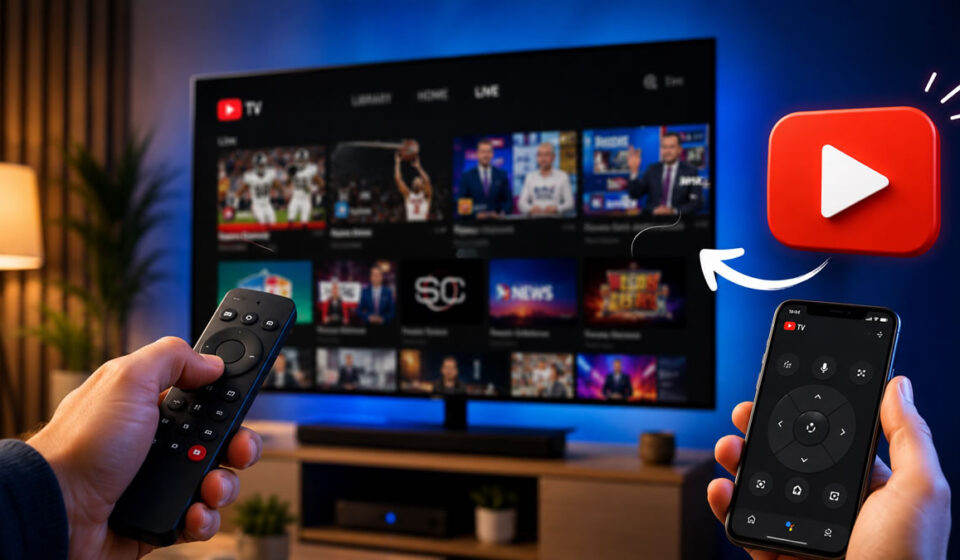
Most YouTube TV users do not realize that the YouTube TV app on iOS and Android doubles as a fully functional remote and keyboard for their television.
Open the YouTube TV app on your phone while the app is active on your TV and connected to the same WiFi network. A cast or remote icon will appear at the top of the mobile interface. Tap it and your phone becomes a trackpad and keyboard instantly.
This matters most when searching for channels or shows because TV remote keyboards are painfully slow. Your phone keyboard makes it roughly five times faster.
Hardware limitation to know: this sync feature requires both devices on identical WiFi networks. Split-band routers that assign 2.4GHz to the TV and 5GHz to your phone will break the connection. Force both devices onto the same band in your router settings if syncing keeps failing.
Understanding the New Pricing Tier Reality
YouTube TV no longer operates on a single subscription model, and this is the change most existing subscribers have not fully processed yet. The cost structure now includes a standard tier and several genre-focused alternatives that look attractive until you read the fine print.
What the Lower Price Tiers Actually Include
Here is the honest breakdown as of 2026:
| Plan Type | Monthly Price | Channel Count | Local Networks | DVR | Sports Included |
| Standard Plan | $72.99 | 100+ | Yes (market dependent) | Unlimited cloud DVR | Yes (core sports) |
| Entertainment Plan | $49.99 | ~40 | No | Limited DVR | No |
| Sports Plus Add-on | $10.99 extra | Add-on only | Existing plan required | Existing plan | Yes (expanded) |
The genre-specific plans cut the price by dropping local broadcast networks entirely. For viewers who have already replaced local news with apps like NewsON or a free over-the-air antenna, this trade is fine. For everyone else, losing ABC, NBC, CBS, and FOX is a meaningful loss that a cheaper plan rarely compensates for.
The sports package as a standalone add-on covers channels like NFL Network, NBA TV, and MLB Network. It requires an active base plan and does not function independently, which is a detail the marketing materials bury.
For current official plan details, check YouTube TV’s official plans page.
Hidden Features That Change Daily Viewing
The YouTube TV interface holds several tools that the default setup never teaches you. These features are real and actively improve the experience once you know where they are.
Rearranging Your Live Guide on Desktop
The live channel guide on YouTube TV can be fully reordered, but only through a desktop browser. The mobile app and TV app do not expose this control.
To reorder channels, open YouTube TV in Chrome, Firefox, or Edge on a computer. Click Live in the top navigation bar. On the right side of the guide, look for the Settings or Edit icon. This opens a drag-and-drop channel list that lets you move your most-watched channels to the top rows.
Changes sync automatically to your TV app within a few minutes. This single feature eliminates the scrolling frustration that causes most people to abandon the live guide entirely and just use the search bar.
Additional hidden features worth enabling:
- Multi-view mode: Watch up to four live streams simultaneously on supported TVs and browsers. Access it through the grid icon during live playback.
- Unlimited cloud DVR: YouTube TV’s DVR does not cap storage hours on the standard plan. It stores content for nine months, which most users never fully use.
- Library auto-add: You can set entire teams or shows to automatically record every future broadcast without managing individual episodes.
Google’s official YouTube TV help center covers full DVR and multi-view documentation if you want the technical specifics.
Fixing Activation Codes and Connection Problems
Most YouTube TV errors fall into three categories: activation code loops, playback buffering on smart TVs, and failed device syncing. Each has a reliable fix.
Activation code loop (code refreshes before you can enter it): The code displayed at tv.youtube.com/start expires in about 10 minutes. If your TV keeps generating a new code before you finish, keep the browser tab open on your computer, return to the TV and generate a fresh code, then enter it immediately without switching browser tabs.
Buffering on smart TVs despite fast internet: YouTube TV recommends a minimum of 3Mbps for standard quality and 13Mbps for 4K. If your TV buffers despite meeting those speeds, the issue is usually WiFi signal strength at the TV itself rather than total household bandwidth. An ethernet adapter for your TV or a WiFi extender near the TV typically resolves persistent buffering.
Device not showing as a remote option on mobile: This almost always comes down to network mismatch. Confirm both devices use the same WiFi network name, not two bands of the same router. Restart the YouTube TV app on both devices and wait 30 seconds before attempting to connect again.
For deeper technical troubleshooting, the YouTube TV community forum is monitored by Google staff and contains documented solutions for model-specific TV issues.
The Honest Decision Before You Subscribe
YouTube TV at the standard $72.99 tier is genuinely competitive when measured against what cable packages charge for equivalent channel counts. The real value is the unlimited DVR, no hardware rental fees, and full multi-device access under one account.
The genre-specific tiers are a real money-saver only if you have already solved the local news problem with an alternative source. Do not downgrade assuming you will not miss local channels until you have tested a week without them.
The sports add-on is worth it specifically for households that watch NFL Network, NBA TV, or MLB Network regularly. Casual sports fans who only watch games on major broadcast networks do not need it.
One honest industry reality worth acknowledging: streaming services in 2026 are increasingly rebuilding the same tiered restrictions that made cable frustrating in the first place. YouTube TV’s genre tiers are a direct mirror of the cable packaging model. Recognizing that pattern helps you make a smarter choice rather than chasing a lower price that quietly removes what you actually watch.
For additional cord-cutting comparisons, The Streamable’s YouTube TV review provides independently verified channel availability data by market.
Your YouTube TV Spending Decision Simplified
The standard plan fits homes that need local broadcast networks and want one clean service with no gaps. The genre plans fit light viewers who already have local news covered elsewhere and want to cut $20 or more per month. The sports add-on is for dedicated sports households, not casual viewers.
Every activation problem, pricing question, and hidden feature described above has a working solution that requires no third-party apps or technical expertise beyond what this guide covers. Platform pricing and channel lineups are subject to change, and readers should verify current details directly with YouTube TV before committing to a plan change.
Frequently Asked Questions
How do I activate YouTube TV on a smart TV?
Open the YouTube TV app on your TV, note the code displayed, then visit tv.youtube.com/start on any phone or computer and enter the code while signed in to your Google account.
What channels does the standard YouTube TV plan include?
The standard plan includes 100+ channels including local ABC, NBC, CBS, FOX affiliates (market dependent), ESPN, CNN, HGTV, and major sports networks with unlimited cloud DVR.
How much does YouTube TV cost per month in 2026?
The standard plan is $72.99 per month. Genre-specific plans start lower around $49.99 but exclude local broadcast networks entirely.
Can I use YouTube TV on multiple TVs at the same time?
Yes, YouTube TV allows up to three simultaneous streams per household account with no additional per-device fees.
Why does my YouTube TV activation code keep expiring?
Activation codes expire in roughly 10 minutes. Keep your browser open on the entry page, generate a fresh code on your TV, and enter it immediately without switching tabs to prevent timeout.
